We will be updating our GameOver routine as follows.
- Blur background (GameRoot)
- Show GameOver in 2x size
Let’s begin with blurring the ‘GameRoot‘.
Open ‘main.tscn‘.
Select ‘UILayer‘. Set ‘Layer‘ -> ‘Layer‘ = 1.
Select ‘UIRoot‘. Add a ColorRect node. Rename it to ‘BlurOverlay‘.
With ‘BlurOverlay‘ selected, set the following properties.
- Layout to ‘Full Rect‘.

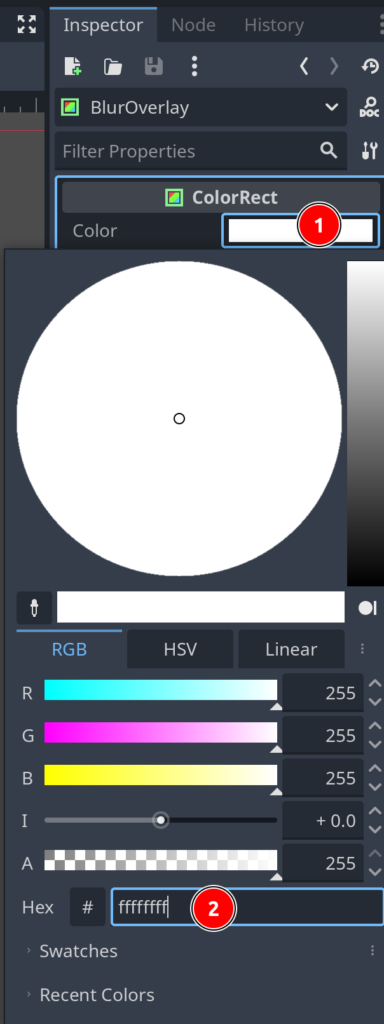
- ‘Color‘ -> White with alpha 1 (#ffffffff)
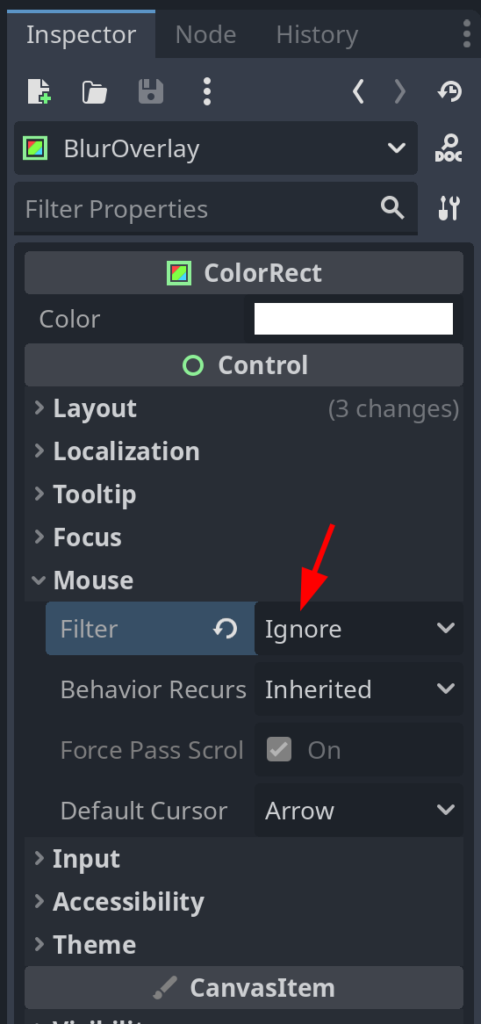
- ‘Mouse‘ -> ‘Filter‘ to Ignore (to prevent it from taking focus)
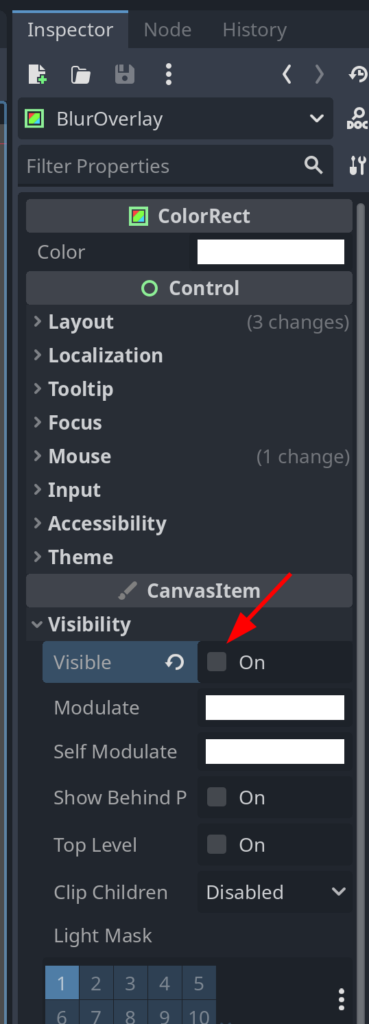
- ‘Visible‘ to unchecked
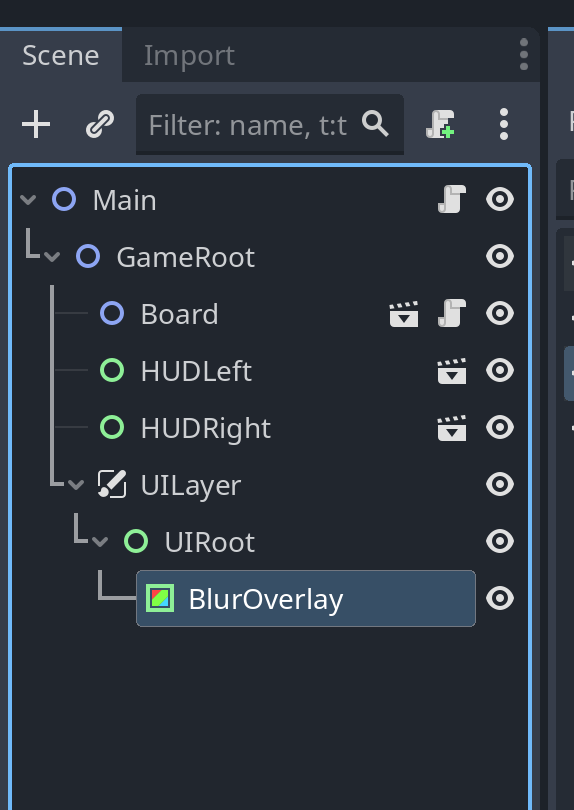
Our ‘Main‘ scene now looks like this.
Save ‘main.tscn‘.
Now we add a blur shader to the ‘BlurOverlay‘.
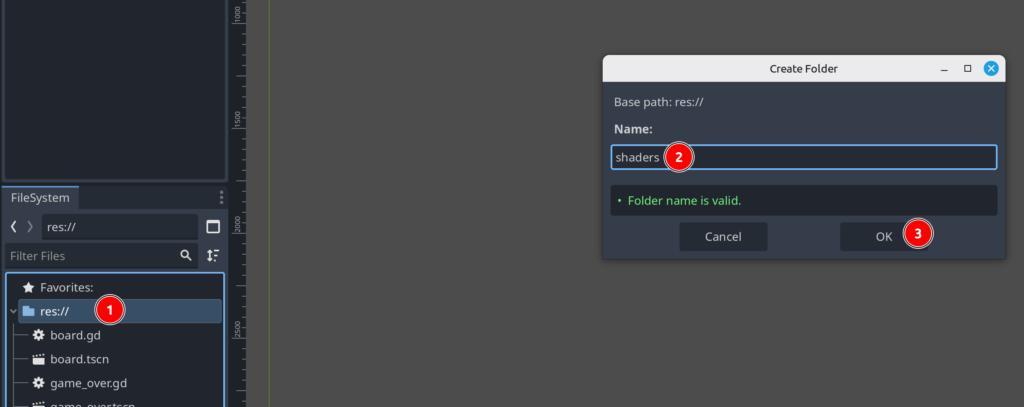
Right-click ‘res://‘ select ‘Create New‘ -> ‘Folder…’
Name the new folder ‘shaders‘
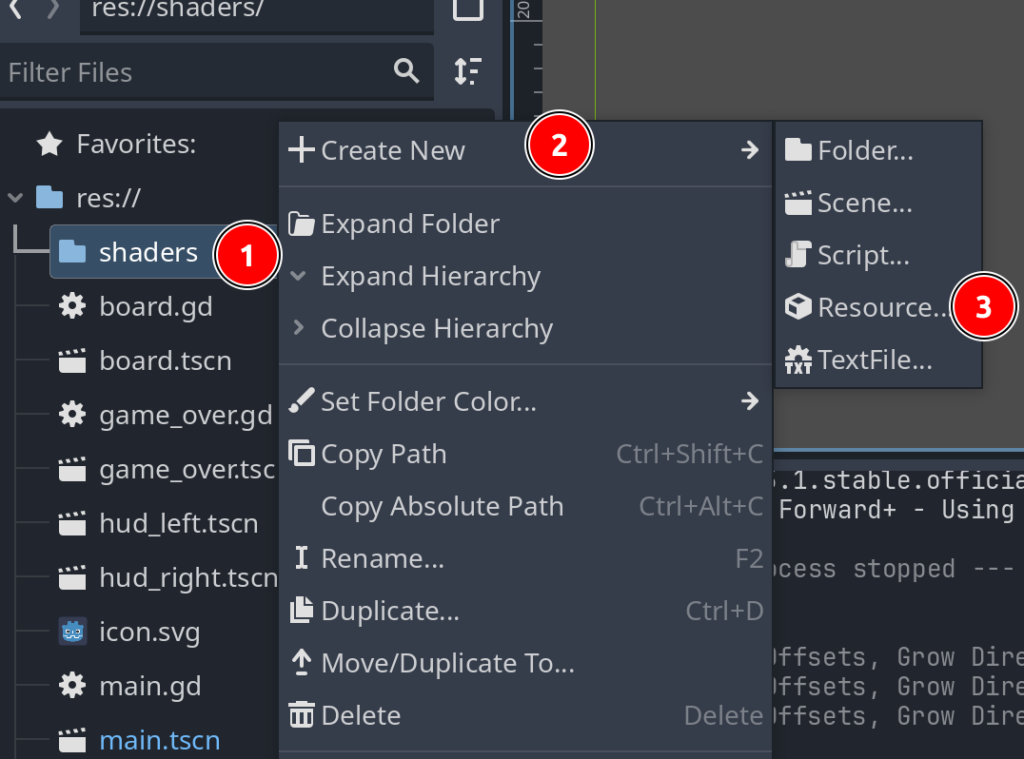
Now right-click your new ‘shaders‘ folder. Select ‘Create New‘ -> ‘Resource…‘.
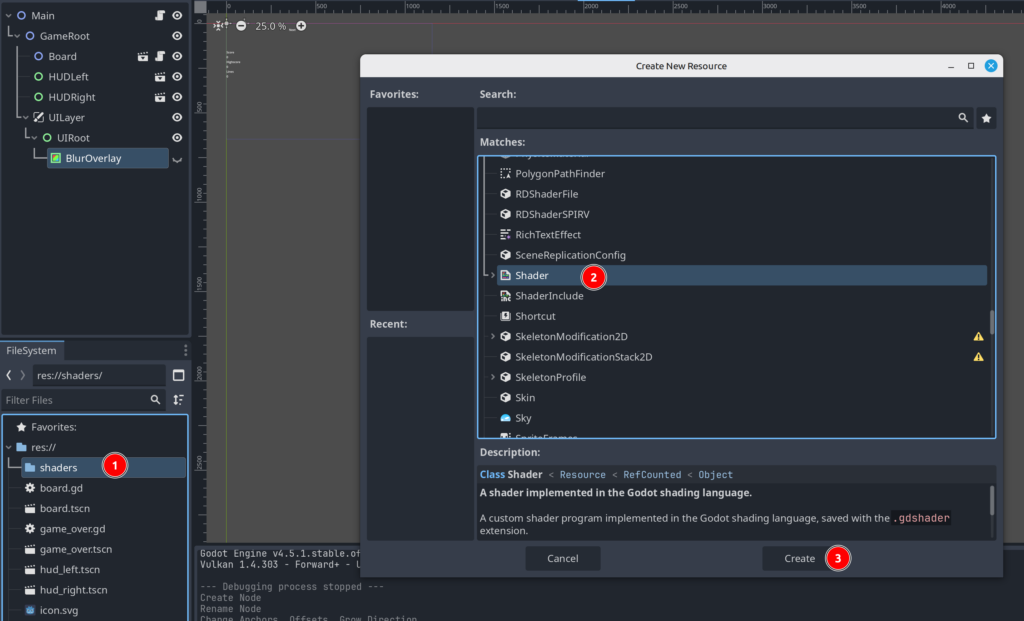
Select ‘Shader‘.
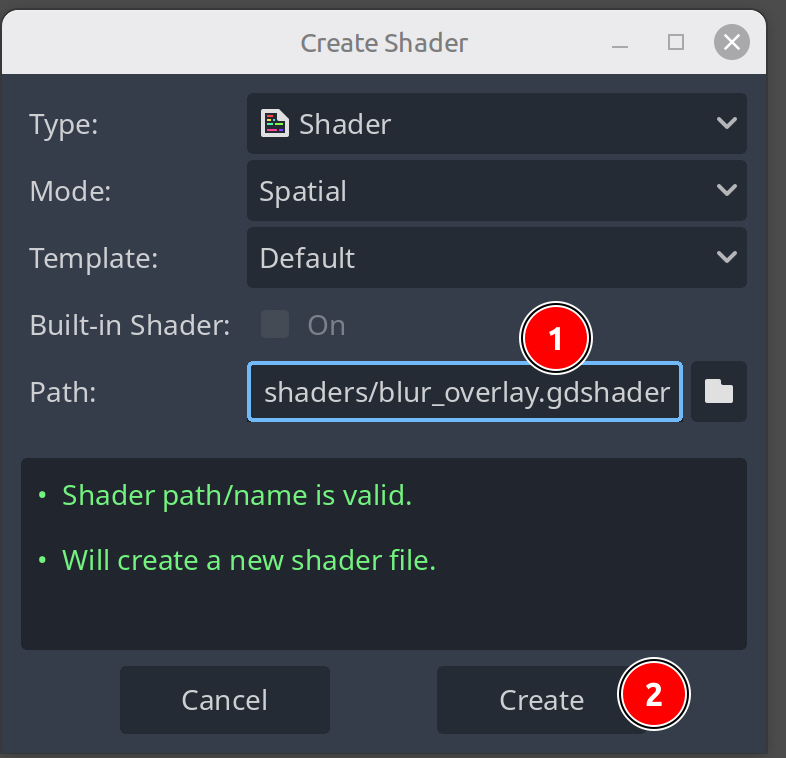
Name the new shader ‘res://shaders/blur_overlay.gdshader‘.
Now select you new shader.
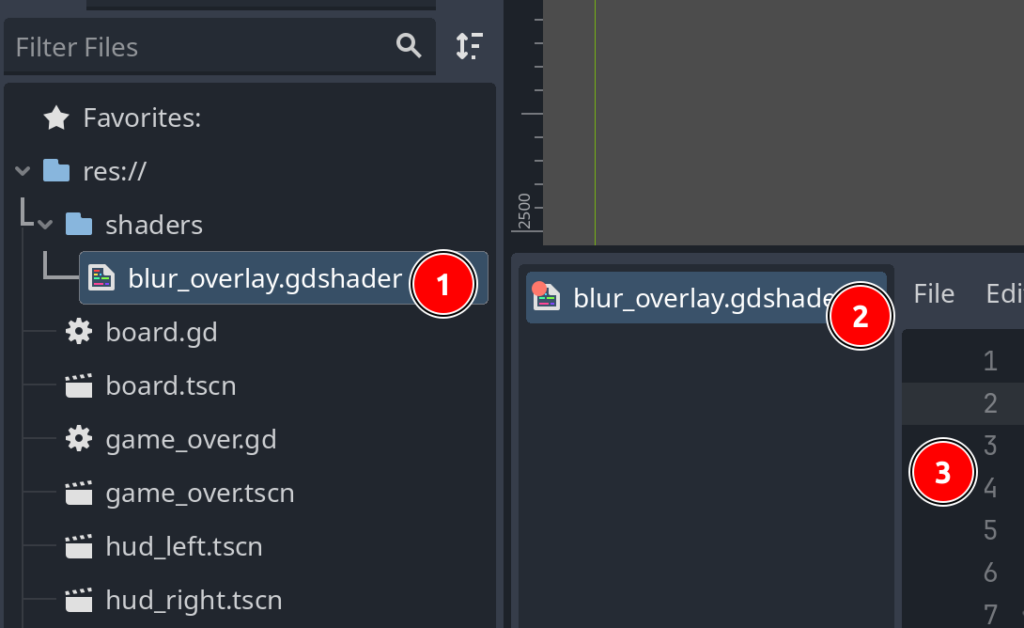
Add this code to it.
shader_type canvas_item;

uniform sampler2D SCREEN_TEXTURE : hint_screen_texture, filter_linear_mipmap;

// Radius in pixels
uniform float blur_radius : hint_range(0.0, 32.0) = 8.0;
// Number of samples in each direction
uniform int samples : hint_range(1, 20) = 6;
// 0 = no blur, 1 = fully blurred
uniform float blur_strength : hint_range(0.0, 1.0) = 0.6;
// Optional slight dimming of background
uniform float dim_amount : hint_range(0.0, 0.5) = 0.1;

void fragment() {
    vec4 original = textureLod(SCREEN_TEXTURE, SCREEN_UV, 0.0);

    vec2 pixel = SCREEN_PIXEL_SIZE * blur_radius;

    vec4 blurred = vec4(0.0);
    int count = 0;

    for (int x = -samples; x <= samples; x++) {
        for (int y = -samples; y <= samples; y++) {
            vec2 offset = vec2(float(x), float(y)) * pixel;
            blurred += textureLod(SCREEN_TEXTURE, SCREEN_UV + offset, 0.0);
            count++;
        }
    }

    blurred /= float(count);

    // Blend between original and blurred
    vec4 color = mix(original, blurred, blur_strength);

    // Slight dimming, if wanted
    color.rgb *= (1.0 - dim_amount);

    COLOR = color;
}Save the shader Ctrl+S
Now we need to apply the shader to our ‘BlurOverlay‘ node in the ‘Main‘ scene.
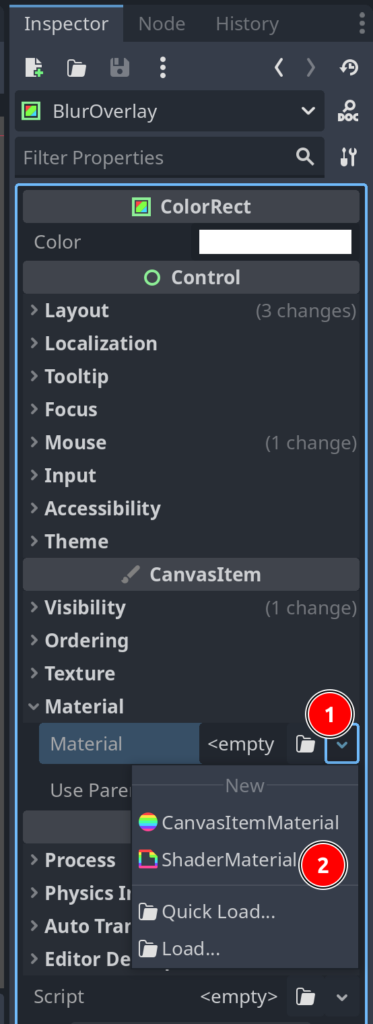
Add a new ‘ShaderMaterial‘.
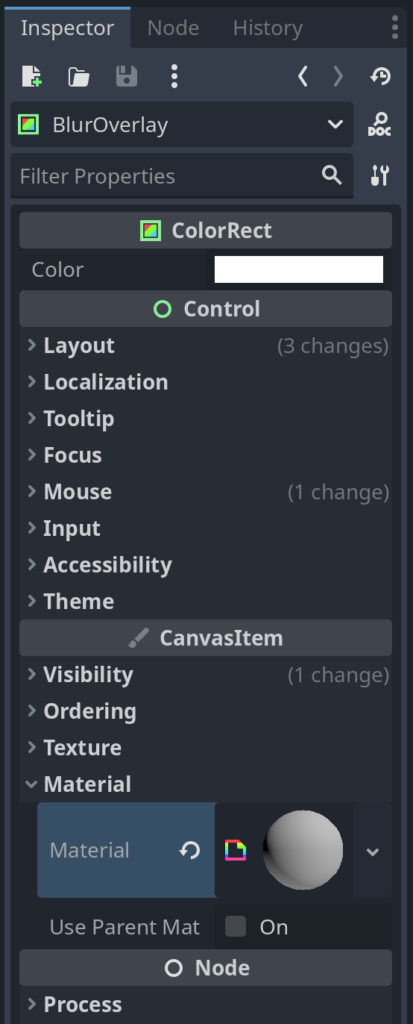
Now we need to attach our shader. Click the ShaderMaterial and select ‘Shader‘ -> ‘Load…‘
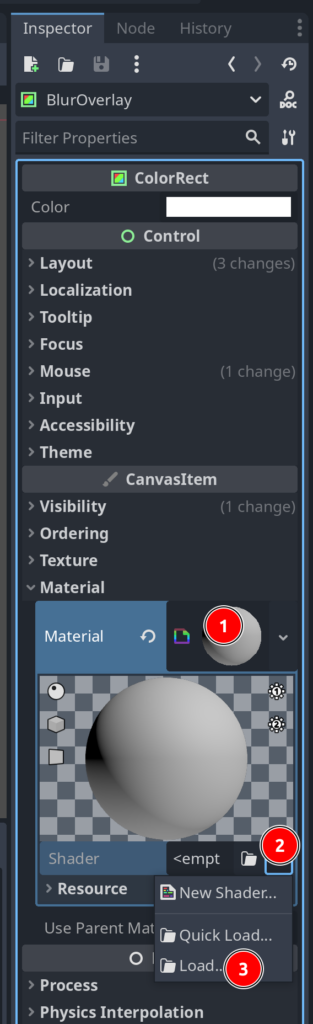
In the file dialog, navigate to ‘res://shaders‘ and select your shader.
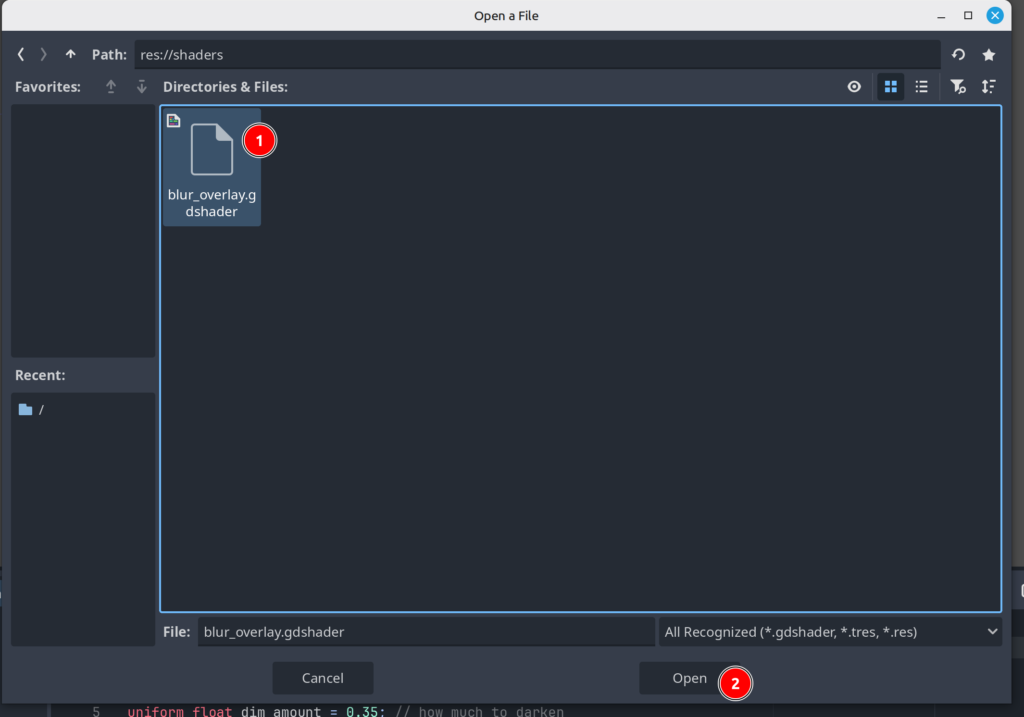
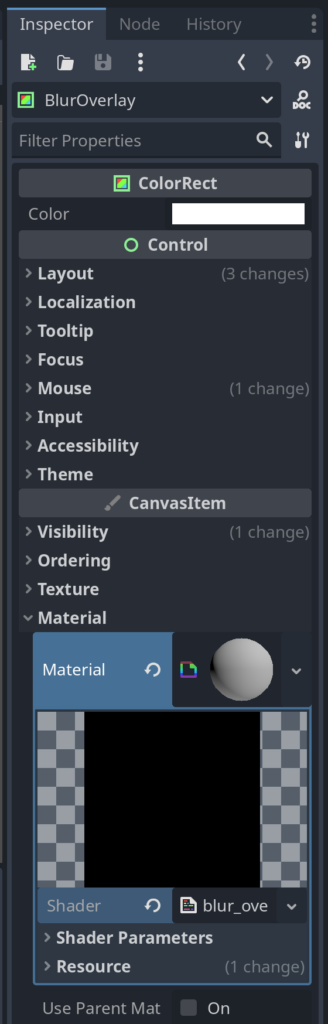
Now set the ‘Shader Parameters‘.
- ‘Blur Radius‘ = 8.0
- ‘Samples‘ = 7
- ‘Blur Strength‘ = 0.7
- ‘Dim Amount‘ = 0.15

Now open ‘main.gd‘ so we can modify it.
Start by adding a reference to our new ‘BlurOverlay‘.
extends Node2D

const GAME_OVER_SCENE := preload("res://game_over.tscn")

@onready var game_root: Node2D = $GameRoot
@onready var board: Node2D = $GameRoot/Board
@onready var hud_left: Control = $GameRoot/HUDLeft
@onready var hud_right: Control = $GameRoot/HUDRight
@onready var ui_root: Control = $GameRoot/UILayer/UIRoot
@onready var blur_overlay: ColorRect = $GameRoot/UILayer/UIRoot/BlurOverlay # New nodeThen we replace ‘_on_game_over()‘ and ‘reset_game()‘ with these.
func _on_game_over(score: int, highscore: int, total_lines: int) -> void:
	# 1) Turn on blur behind the overlay
	if blur_overlay:
		blur_overlay.visible = true

	# 2) Show the GameOver UI on top
	var game_over_layer := GAME_OVER_SCENE.instantiate()

	game_over_layer.final_score = score
	game_over_layer.final_highscore = highscore
	game_over_layer.total_lines = total_lines

	ui_root.add_child(game_over_layer)
	game_over_layer.set_anchors_preset(Control.PRESET_FULL_RECT)

func reset_game() -> void:
	# Hide blur again
	if blur_overlay:
		blur_overlay.visible = false

	if board.has_method("reset_game"):
		board.reset_game()
Save ‘main.gd‘. Run the game, and force a GameOver. You should now see something like this.
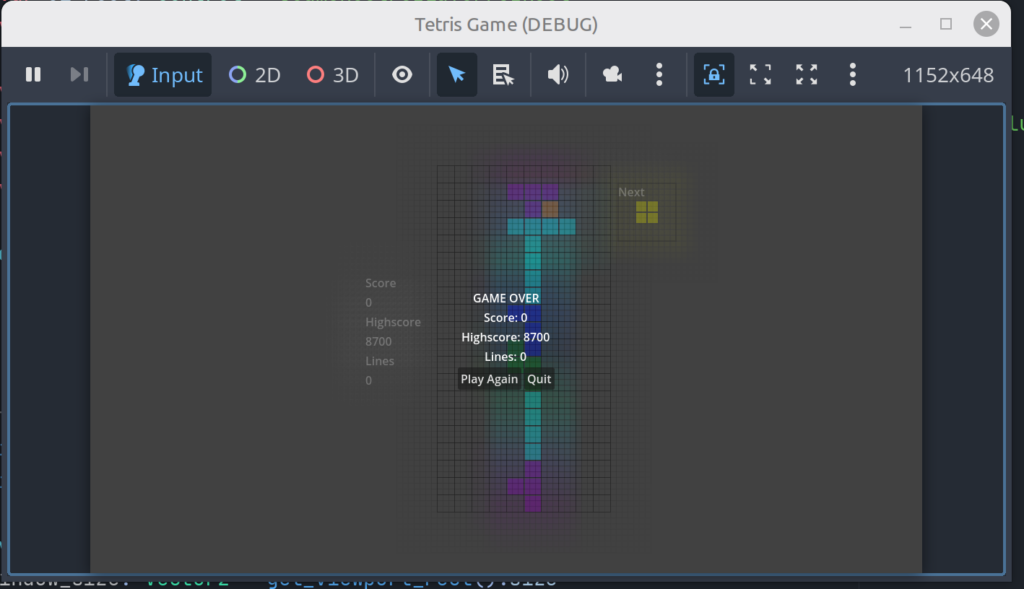
We have a blurred background and a crisp GameOver overlay.
Now we can continue with enlarging the GameOver overlay. This is an easy task.
Start by opening ‘game_over.tscn‘. Select the ‘GameOver‘ node.
In the Inspector -> Layout -> Transform. Set Scale.x/Scale.y to 2.0
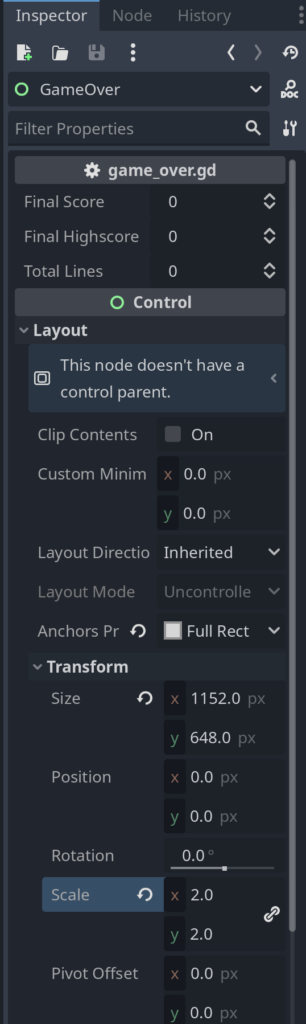
Save ‘game_over.tscn‘.
Now open ‘main.gd‘. Add 2 new lines to ‘func _on_game_over()‘.
func _on_game_over(score: int, highscore: int, total_lines: int) -> void:
	# 1) Turn on blur behind the overlay
	if blur_overlay:
		blur_overlay.visible = true

	# 2) Show the GameOver UI on top
	var game_over_layer := GAME_OVER_SCENE.instantiate()
	game_over_layer.set_anchors_preset(Control.PRESET_CENTER)	# New
	game_over_layer.scale = Vector2(2, 2)	# New

	game_over_layer.final_score = score
	game_over_layer.final_highscore = highscore
	game_over_layer.total_lines = total_lines

	ui_root.add_child(game_over_layer)
game_over_layer.set_anchors_preset(Control.PRESET_FULL_RECT)Save ‘main.gd‘.
Run the game and force a GameOver. You will now get something like this.
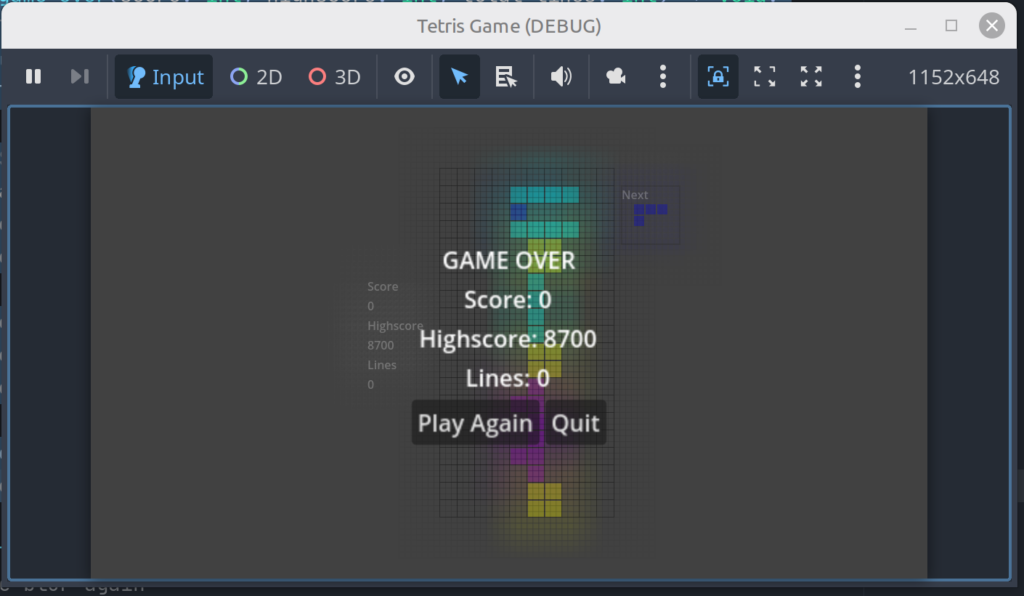
This concludes this mod of our Tetris game.
Next you could play around with adding color to your strings.
- Make the ‘GAME OVER‘ string red.
- Add colors to the buttons to make them stand out a bit more from the background.
- Advanced
- Make a ‘glow’ effect to the GameOver scene.

Leave a Reply